Previously, you had to use Outlook or EWS to check delegate settings and whether a delegate could view private items. This capability is now available in Exchange Online PowerShell, but it applies only to calendar folders.
Note
This example is for Exchange Online. The Get-MailboxFolderPermission cmdlet itself is available in both Exchange Server and Exchange Online, but SharingPermissionFlags is available only in Exchange Online. This flag also applies to calendar folders. Do not assume that the same result is available in Exchange Server. See Microsoft Learn for Get-MailboxFolderPermission and the SharingPermissionFlags documentation.
For example, assume you configured a delegate to view private items in Outlook on the web (OWA) for Exchange Online, as shown below.
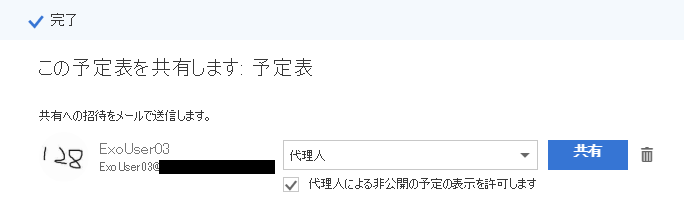
Run the following command. Replace the user name and folder name as needed.
1 | Get-MailboxFolderPermission exouser02:\予定表 |
The SharingPermissionFlags output contains Delegate and CanViewPrivateItems. This shows that the user is a delegate who can also view private items. The AccessRights value is Editor.

This capability also makes it easy to list users who can view private items. For example, run the following command to list users who can view private items in the specified user’s calendar folder. Although SharingPermissionFlags looks like an array, its current implementation is a string.
1 | Get-MailboxFolderPermission exouser02:\予定表 | ?{$_.SharingPermissionFlags -ne $null -and $_.SharingPermissionflags.Contains("CanViewPrivateItems")} |
Before running this command in Exchange Online, connect to Exchange Online PowerShell.