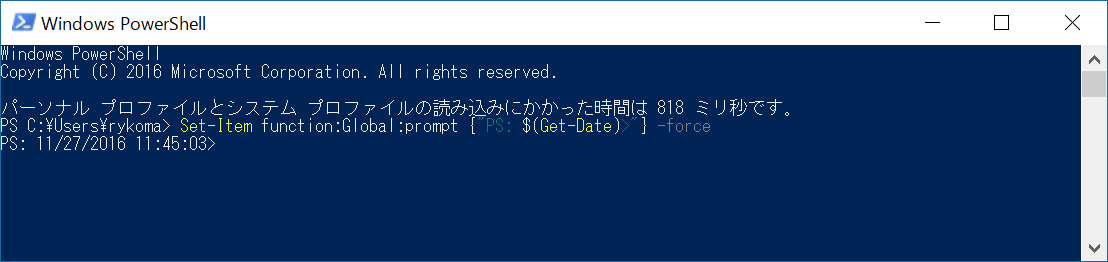
It can be useful to see when you ran a command in PowerShell. You could run Get-Date each time, but that gets a little tedious.
Instead, you can change the “PS
1 | Set-Item function:Global:prompt {"PS: $(Get-Date)>"} -force |
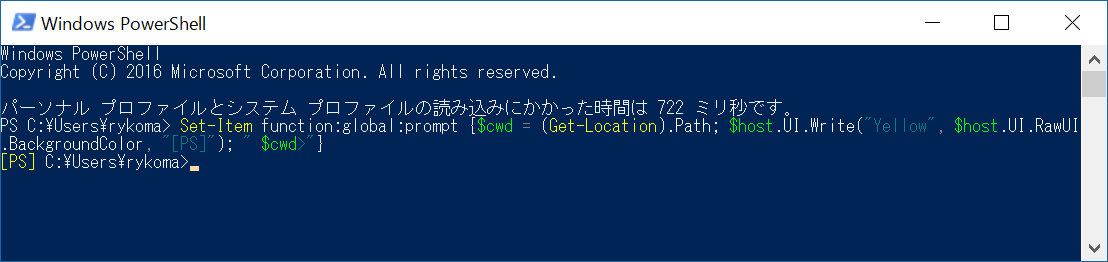
You can also color the prompt to give it an Exchange Management Shell-style look.
1 | Set-Item function:global:prompt {$cwd = (Get-Location).Path; $host.UI.Write("Yellow", $host.UI.RawUI.BackgroundColor, "[PS]"); " $cwd>"} |
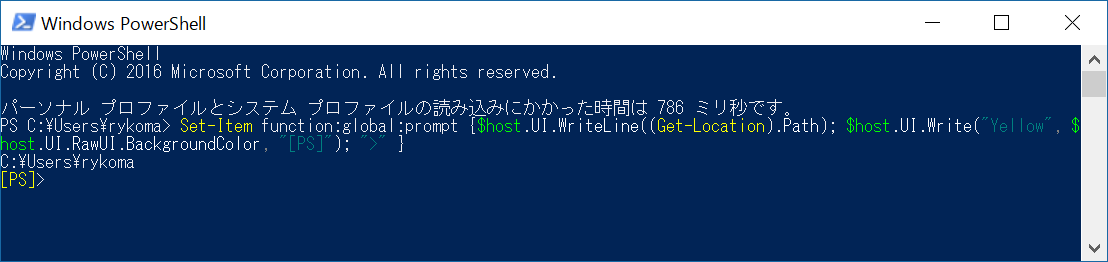
If a long path leaves too little room to enter a command, you can put the path on a separate line.
1 | Set-Item function:global:prompt {$host.UI.WriteLine((Get-Location).Path); $host.UI.Write("Yellow", $host.UI.RawUI.BackgroundColor, "[PS]"); ">" } |
To check the current prompt definition, run this command:
1 | (Get-Item function:prompt).Definition |
To restore the original prompt, restart PowerShell.